
How to setup DKIM: a practical guide for UK businesses

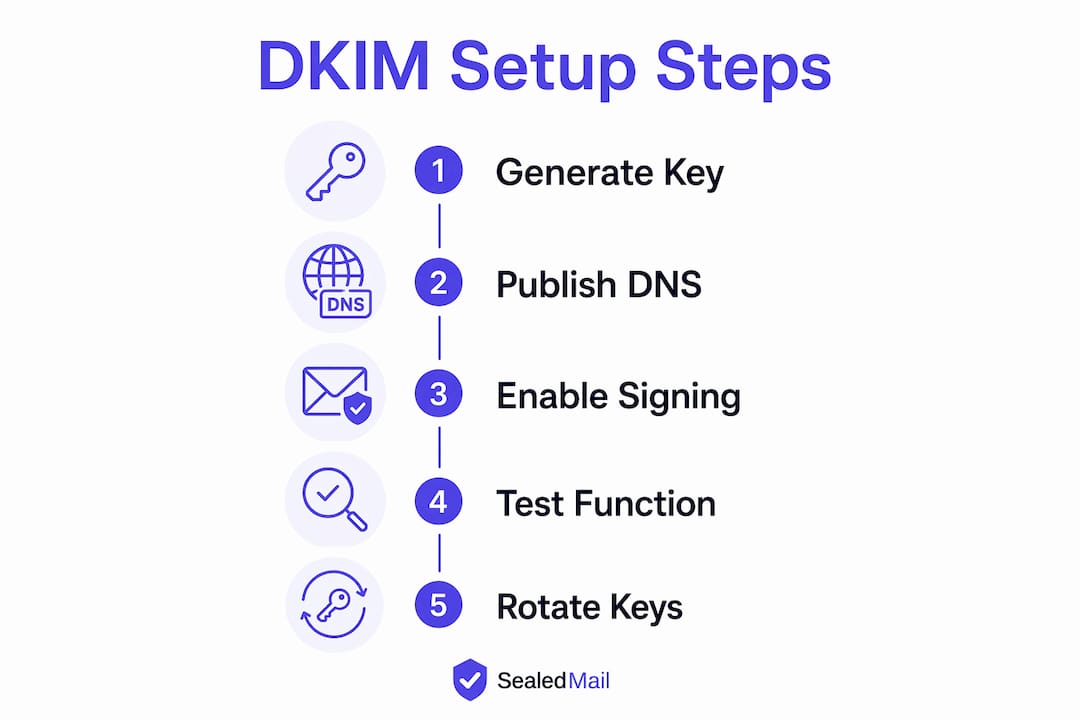
Setting up DKIM (DomainKeys Identified Mail) means generating a cryptographic key pair, publishing the public key in your domain’s DNS as a TXT record, and enabling your mail service to sign outgoing messages with the private key. Here is the process at a glance:
- Generate your DKIM key pair using your email platform’s admin panel or a key generation tool such as OpenSSL. Use RSA 2048-bit keys as a minimum.
- Choose a selector — a short label like
mailors1that identifies which key to use. - Create a DNS TXT record with the host
selector._domainkey.yourdomain.co.ukand the valuev=DKIM1; k=rsa; p=<yourpublickey>. - Enable DKIM signing on your mail service so every outbound message carries the signature.
- Verify the setup using a DKIM lookup tool such as MXToolbox.
What is DKIM and why does it still matter?
DKIM adds a cryptographic signature to every outgoing email, allowing the receiving server to confirm the message came from your domain and was not altered in transit. The sending server hashes the email headers and body, encrypts that hash with a private key, and attaches the result to the message header. The recipient’s server retrieves your public key from DNS and checks whether the hash matches.
SPF, by contrast, only verifies that the sending server’s IP address is authorised for your domain. DKIM goes further by validating the message itself, which means it survives email forwarding where SPF often fails. Together, SPF and DKIM feed into DMARC, which tells receiving servers what to do when authentication fails.
DKIM is a stronger authentication mechanism than SPF alone. The National Cyber Security Centre (NCSC) recommends configuring DKIM on every domain you send email from, specifically because it validates message integrity through email relays where SPF cannot.
DMARC cannot enforce a meaningful policy without at least one of SPF or DKIM passing alignment. In practice, DKIM is the more reliable of the two for organisations that route mail through third-party services or filtering gateways.
How to generate DKIM keys and publish DNS records
The technical steps differ slightly depending on your environment, but the core process is consistent.
Generating the key pair
For self-hosted mail servers, generate an RSA key pair using OpenSSL on Linux or PuTTYgen on Windows. RFC 8301 deprecated 1024-bit RSA keys; always use 2048-bit as a minimum. If your mail server supports it, Ed25519 keys offer equivalent security with a much smaller DNS record footprint. You can also dual-sign with both RSA-2048 and Ed25519 to cover legacy receivers while benefiting from the newer algorithm on modern platforms.

Understanding selectors
A DKIM selector is a short string that identifies which public key to retrieve from DNS. Selectors let you run multiple keys simultaneously — useful when rotating keys or when different services send mail on behalf of the same domain. Common selectors include mail, google, or s1.
Publishing the DNS TXT record
Add a TXT record to your domain’s DNS with the following structure:
- Host / record name:
selector._domainkey.yourdomain.co.uk - Record value:
v=DKIM1; k=rsa; p=<yourpublickey>
Some providers use a CNAME record instead of a TXT record. Follow your provider’s specific guidance if that is the case. DNS changes can take up to 48 hours to propagate globally, so allow time before testing.
Avoid the l= body length tag in your DKIM signature configuration. This tag restricts signature coverage to a specified number of bytes, which allows an attacker to append malicious content after the signed portion without breaking the signature.
Pro Tip: Rotate your DKIM keys regularly using a new selector. Keep the old DNS record live for a few days after switching, giving DNS time to propagate and preventing delivery failures during the transition.
How to enable DKIM signing in Microsoft 365 and other mail services
Enabling DKIM in Microsoft 365
Microsoft 365 handles key generation automatically, but you still need to publish two CNAME records in your DNS and then activate signing. Follow these steps:
- Sign in to the Microsoft 365 Defender portal at security.microsoft.com.
- Go to Email & Collaboration > Policies & Rules > Threat policies > Email authentication settings.
- Select the DKIM tab and choose your domain.
- Click Enable to turn on DKIM signing.
- Microsoft will display two CNAME records. Add both to your domain’s DNS.
- Once DNS has propagated, return to the portal and confirm the status shows as enabled.
A common misconfiguration in Microsoft 365 is leaving the defaultonmicrosoft.comdomain as the DKIM signing domain. If your Header From address isyourcompany.co.ukbut signing usesonmicrosoft.com, DKIM alignment will fail every time, and your DMARC policy will not pass. Always configure custom DKIM for your own domain.
Cloud services and self-hosted servers
Cloud-based email services often automate much of the DKIM configuration through their admin panels, or your service provider can assist directly. Self-hosted servers require manual key generation and DNS publication as described above. Whichever route you take, the DKIM signature must be the last modification made to a message before it leaves your server. Any footer, disclaimer, or scanning tool that alters the message after signing will break the signature.

The NCSC advises that if your legacy email system makes DKIM configuration impractical, upgrading to a compatible cloud service is preferable to adding complexity to an ageing environment.
How DKIM works with SPF and why you need both
SPF and DKIM address different parts of the authentication problem, and neither is sufficient on its own.
- SPF checks whether the sending server’s IP address is listed as authorised in your DNS. It protects the envelope sender but breaks when mail is forwarded.
- DKIM validates the message content and headers using a cryptographic signature. It survives forwarding because the signature travels with the message.
- DMARC ties both together. It checks whether the domain in the Header From address aligns with the domain that passed SPF or DKIM, then applies your published policy (none, quarantine, or reject) to failures.
Using DKIM alongside SPF improves authentication coverage by validating both the sending server and the message itself. The NCSC’s email security guidance requires all three protocols — DMARC, DKIM, and SPF — to be in place. For UK businesses outside the public sector, the same layered approach is the recognised standard for preventing spoofing and phishing.
How do you verify DKIM is working correctly?
Once your DNS record has propagated, confirm the setup before relying on it.
- Use MXToolbox’s DKIM lookup at mxtoolbox.com/dkim.aspx. Enter your domain and selector; a passing result returns your public key and confirms the record is reachable.
- Check email headers by sending a test message to a Gmail or Outlook account, then viewing the full headers. Look for
dkim=passin theAuthentication-Resultsline. - Verify DKIM alignment by confirming the
d=domain in the DKIM signature matches the domain in your Header From address. A mismatch here causes DMARC alignment failure even when the DKIM signature itself is valid. - Watch for common failures: incorrect selector names, DNS propagation delays, and outbound scanning tools that modify the message body after signing are the most frequent causes of DKIM failures.
- Use relaxed canonicalisation rather than strict. Relaxed mode tolerates minor whitespace changes introduced by mail relays, reducing false failures on otherwise legitimate messages.
Where to find UK-based help with DKIM setup and email security
For organisations that want hands-on support rather than self-service configuration, two UK-based options are worth knowing about.
Microsoft 365 Chap is a Brighton-based consultancy specialising in Microsoft 365 consulting, support, and managed IT services. They work with UK businesses on Microsoft 365 configuration including email security, making them a practical choice if your DKIM setup involves the Microsoft stack.
Ongoing monitoring matters as much as initial configuration. Getting DKIM live is one step; knowing whether it continues to pass, whether new sending services are breaking alignment, and whether your DMARC policy is catching spoofing attempts requires regular review of authentication data.
Sealedmail provides DKIM monitoring as part of a weekly email security report covering DMARC, SPF, DKIM, TLS-RPT, MTA-STS, blacklist status, and BIMI health. A single expert reviews the data and delivers findings in plain English, with compliance-ready audit evidence included. The service costs £39 per domain per month, and a free domain health check is available to get started without commitment.
How to handle DKIM for multiple domains and subdomains
Each domain and subdomain you send email from needs its own DKIM key and DNS record. A key configured for yourcompany.co.uk provides no authentication coverage for newsletter.yourcompany.co.uk or invoices.yourcompany.co.uk.
Use distinct selectors for each sending service on a domain. If you send transactional email through a third-party platform and marketing email through another, each service needs its own selector and key pair published in DNS. This also makes key rotation cleaner: you can retire one service’s key without affecting the others.
For subdomains, the DNS record follows the same pattern: selector._domainkey.subdomain.yourdomain.co.uk. If your DMARC policy uses relaxed alignment, a subdomain’s DKIM signature will satisfy alignment for the parent domain. Strict alignment requires an exact match, so subdomains must sign with their own domain in the d= tag if strict mode is in use.
Accounting firms and professional services businesses handling client communications across multiple brands or trading names should treat each sending domain as a separate configuration task — see Real-Time Client Communication in Accounting for insights on secure communication protocols including DKIM. Sealedmail’s DMARC monitoring covers multiple domains under a single subscription review, which simplifies oversight when you are managing more than one.
Key takeaways
DKIM setup requires generating a 2048-bit key pair, publishing the public key in DNS, enabling signing on your mail service, and verifying alignment with your Header From domain.
| Point | Details |
|---|---|
| Key strength | Always use RSA 2048-bit keys or Ed25519; RFC 8301 deprecated 1024-bit keys. |
| DNS record format | Publish a TXT record at selector._domainkey.yourdomain.co.uk with v=DKIM1; k=rsa; p=<key>. |
| Microsoft 365 setup | Enable DKIM in Threat policies > Email authentication settings and add the two CNAME records to DNS. |
| Key rotation | Rotate your DKIM keys regularly using a new selector; keep the old record live during DNS propagation. |
| Layered protection | DKIM, SPF, and DMARC together form the standard anti-spoofing stack recommended by the NCSC. |
FAQ
How do I set up DKIM for my email?
Generate an RSA 2048-bit key pair, publish the public key as a DNS TXT record at selector._domainkey.yourdomain.co.uk, then enable DKIM signing in your mail service’s admin panel. Verify the result using a DKIM lookup tool such as MXToolbox.
Is DKIM still relevant in 2026?
Yes. DKIM remains the most reliable email authentication mechanism because it validates message integrity and survives forwarding, where SPF fails. It is also a prerequisite for DMARC alignment, making it a core part of any anti-spoofing configuration.
How do I set up DKIM in Microsoft 365?
In the Microsoft 365 Defender portal, go to Email authentication settings under Threat policies, select your domain on the DKIM tab, and click Enable. Add the two CNAME records Microsoft provides to your domain’s DNS, then confirm the status shows as enabled once propagation is complete.
Is DKIM required for all email servers?
DKIM is not legally mandated for most private organisations, but the NCSC recommends it for every domain that sends email. Major inbox providers increasingly use DKIM as a trust signal, and without it your DMARC policy cannot pass alignment reliably.
Recommended

Founder of SealedMail and a UK email-security specialist in DMARC, SPF, DKIM and email authentication for regulated sectors. He personally reads the DMARC and TLS reports behind every SealedMail account and writes the company's plain-English guides. More from Shaun Cooke →
